Slick advanced options
Changing ITCH configuration
Slick v2.0 allows changing some of the configuration on the ITCH. Follow the following instructions to do so.
Opening the ITCH configuration page
The ITCH configuration page can be accessed though the Operation Summary page.

When connected to ITCH, three dots ( ⋮ ) become available next to "Operation Info" title.
If you don't see the three dots then check your connection with ITCH and try again. Connection with ITCH is required before opening the configuration page because the page shows values on the ITCH.
Click the three dots ( ⋮ ) and click "Change ITCH configuration".
The ITCH configuration page will open.
Setting ITCH control parameters
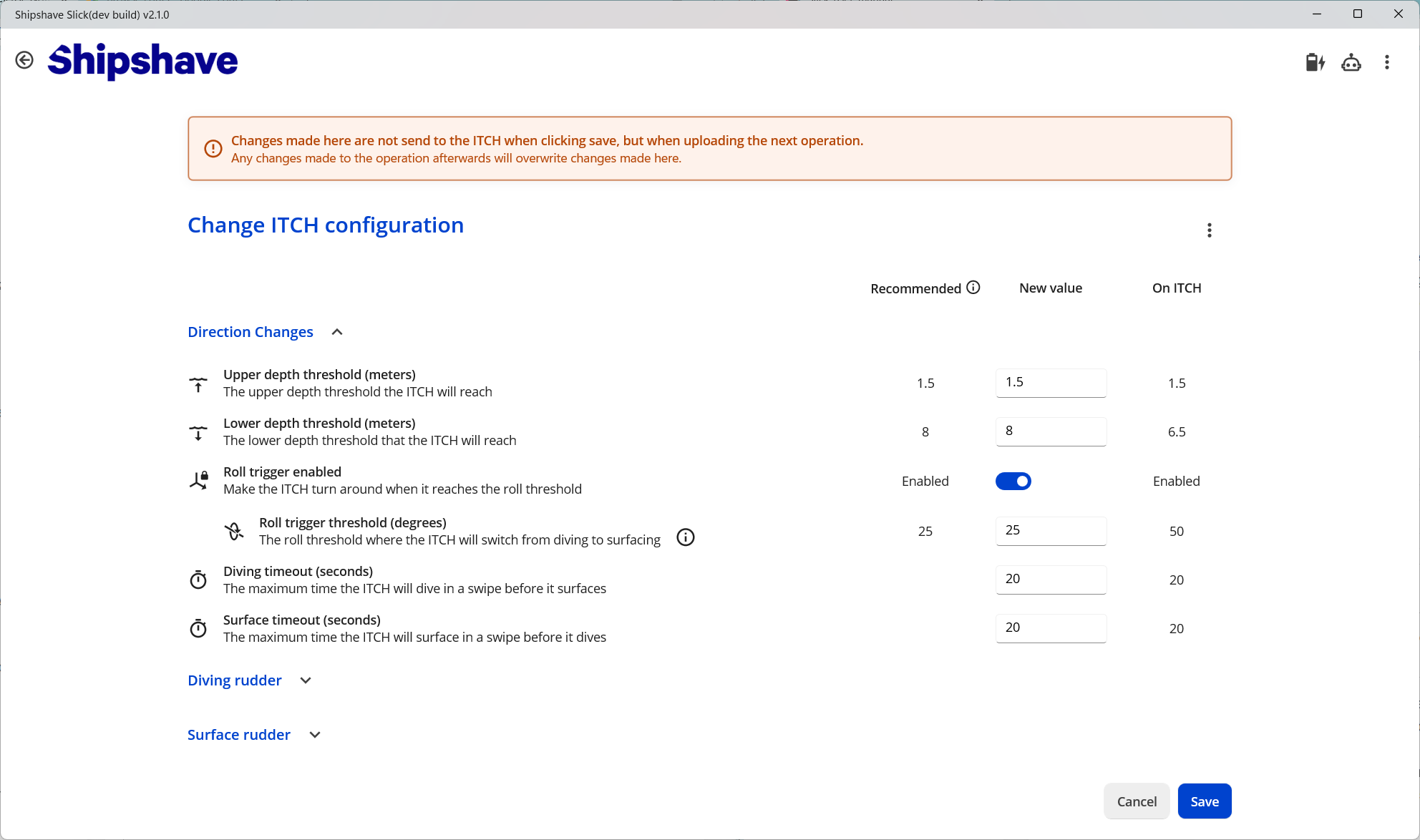
Users are greeted with the following screen when navigating to the ITCH configuration page.
Direction change settings
The first section "Direction Changes" allows setting values controlling the depth setpoint and timeout. The values shown in this section are based on the inputs provided during the setup of the mission that is currently being planned. The values can be changed as desired. Limited validation is applied here.
Rudder settings
The next two sections allow setting the rudder angles used during diving and surfacing. All values entered here should be positive and are converted before usage by Slick.
NOTE: All angled entered should be positive values.
Saving changes
Click "Save" to save the updated configuration.
NOTE: Settings are not applied/send to ITCH when clicking "Save" here. Settings become active when the mission is uploaded to the ITCH. If you make changes to the mission before uploading, please verify any changes made to the ITCH parameters here as they will get overwritten.
Developer mode options
Enable developer mode
To enable developer mode, go to the Settings Page from any page.
Click the "File settings" expand option 5 times. A warning will appear indicating you are about to enable "Developer mode".
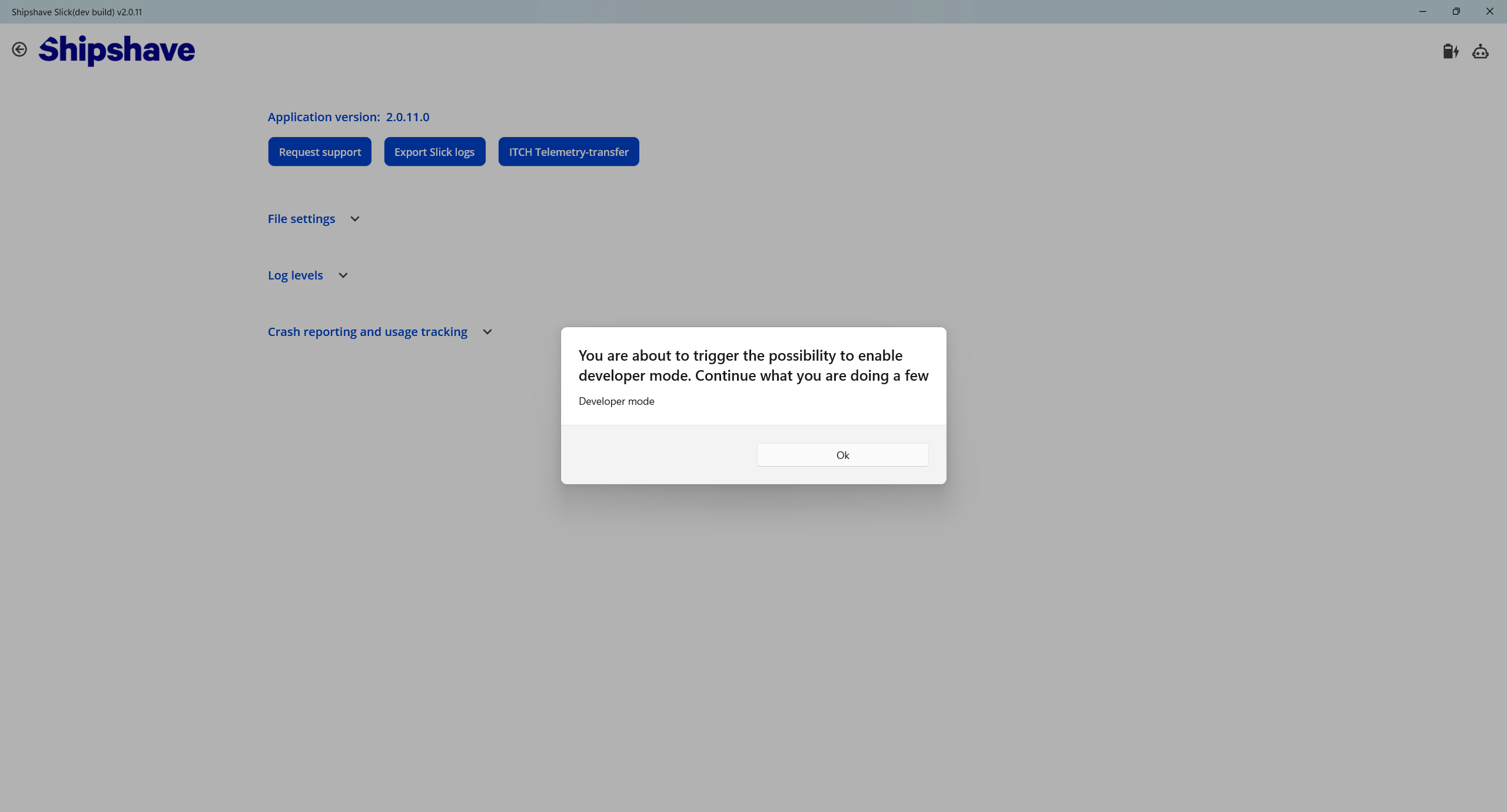
Click the "File settings" expand option 2 more times.
A confirmation popup will appear, confirming if you want to enable "Developer mode". Type "I know what I'm doing" if you want to proceed.
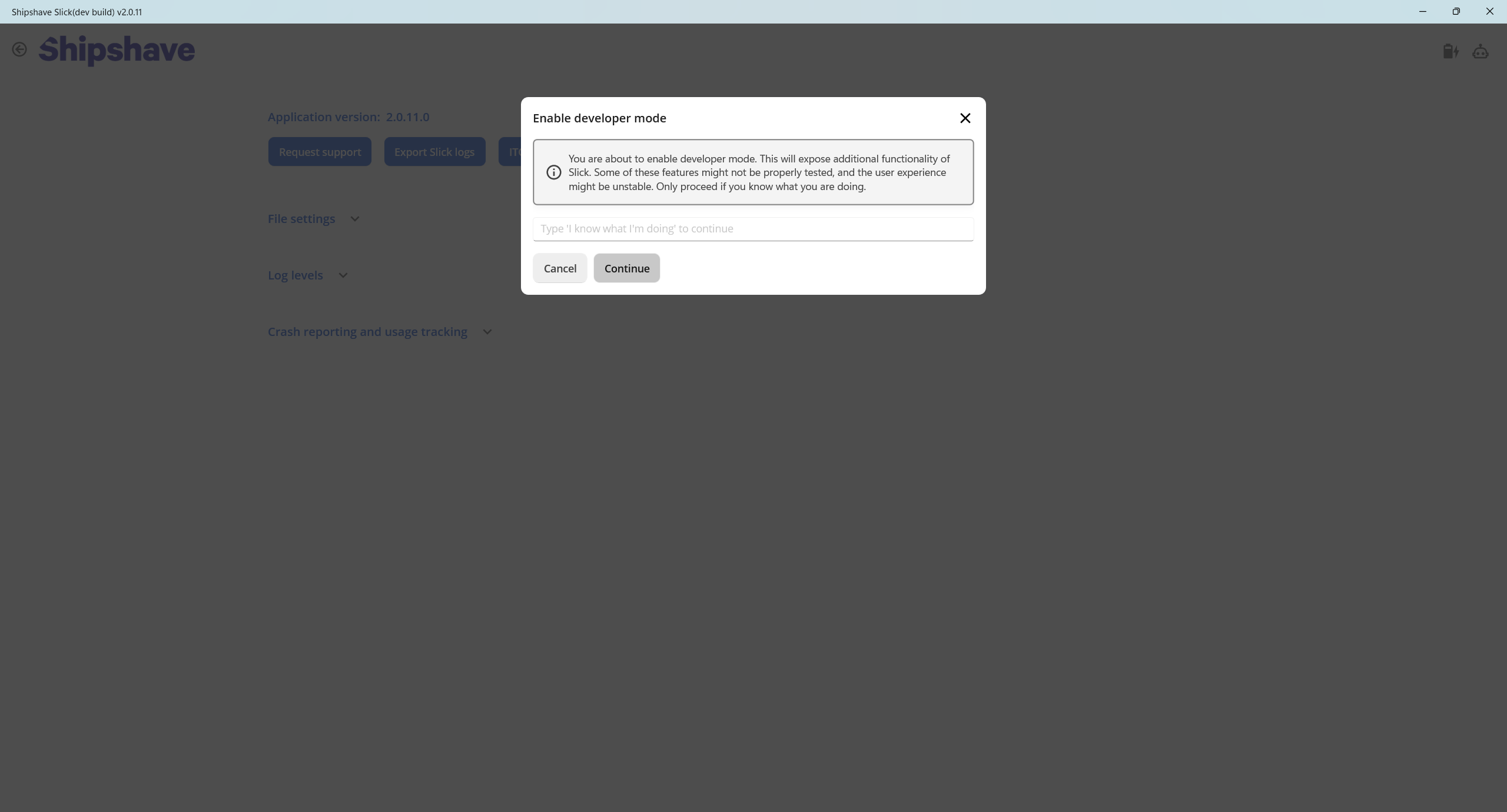
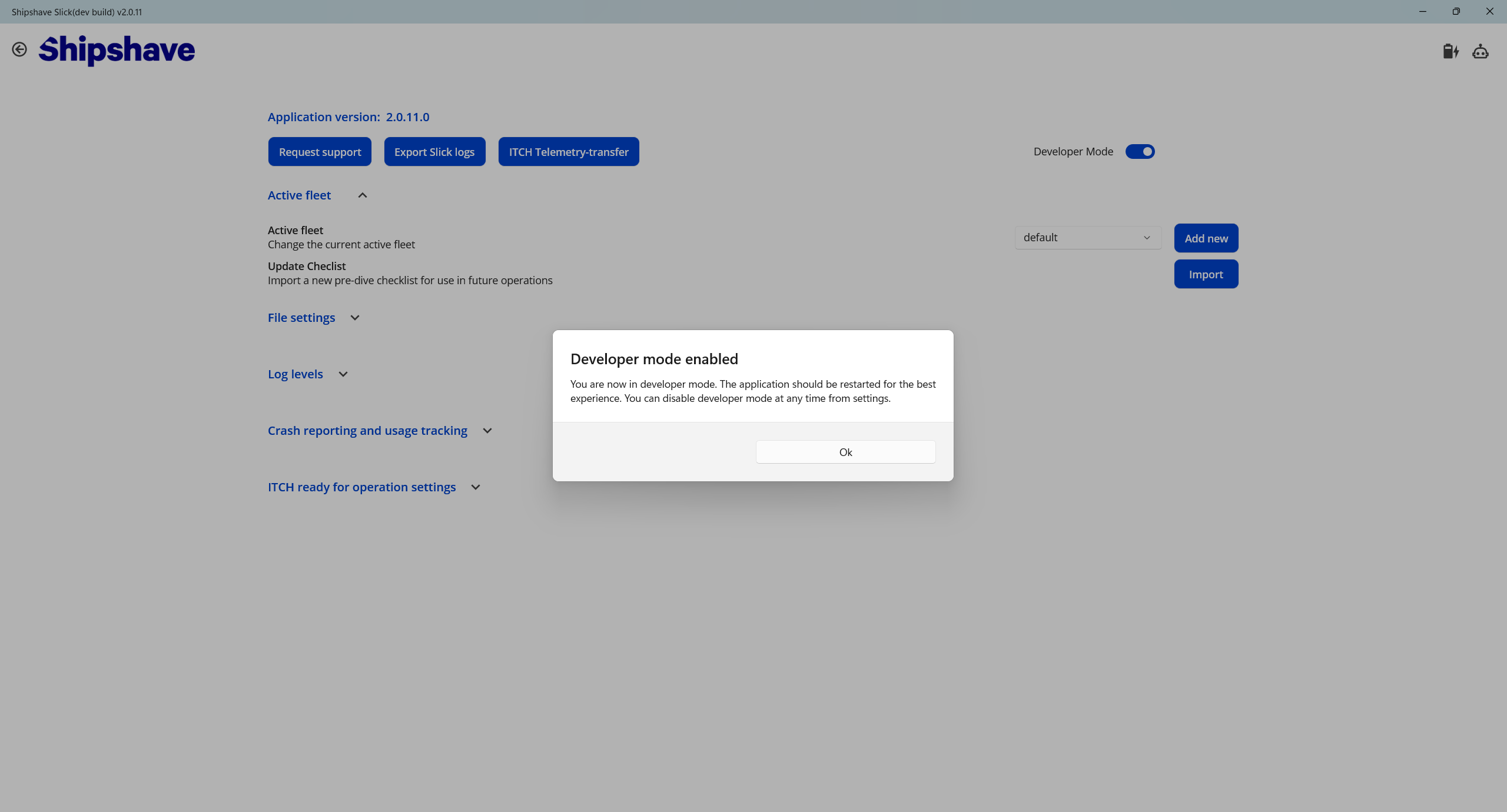
A confirmation will appear that "Developer mode" has been enabled.
Fleet settings
Developer mode allows changing of the current "Fleet" from the Settings page. A Fleet is a group of vessels that is currently used by Slick. Customers will (for now) only have one Fleet called "default". To hide customer vessels during testing or for development, more fleets can be added and the active fleet can be changed.
ITCh ready for operation settings
These settings in the Settings page allow to override the safety checks applied before starting an operation. The minimum battery level required can be changed to allow performing multiple shorter operations.
Delete a vessel
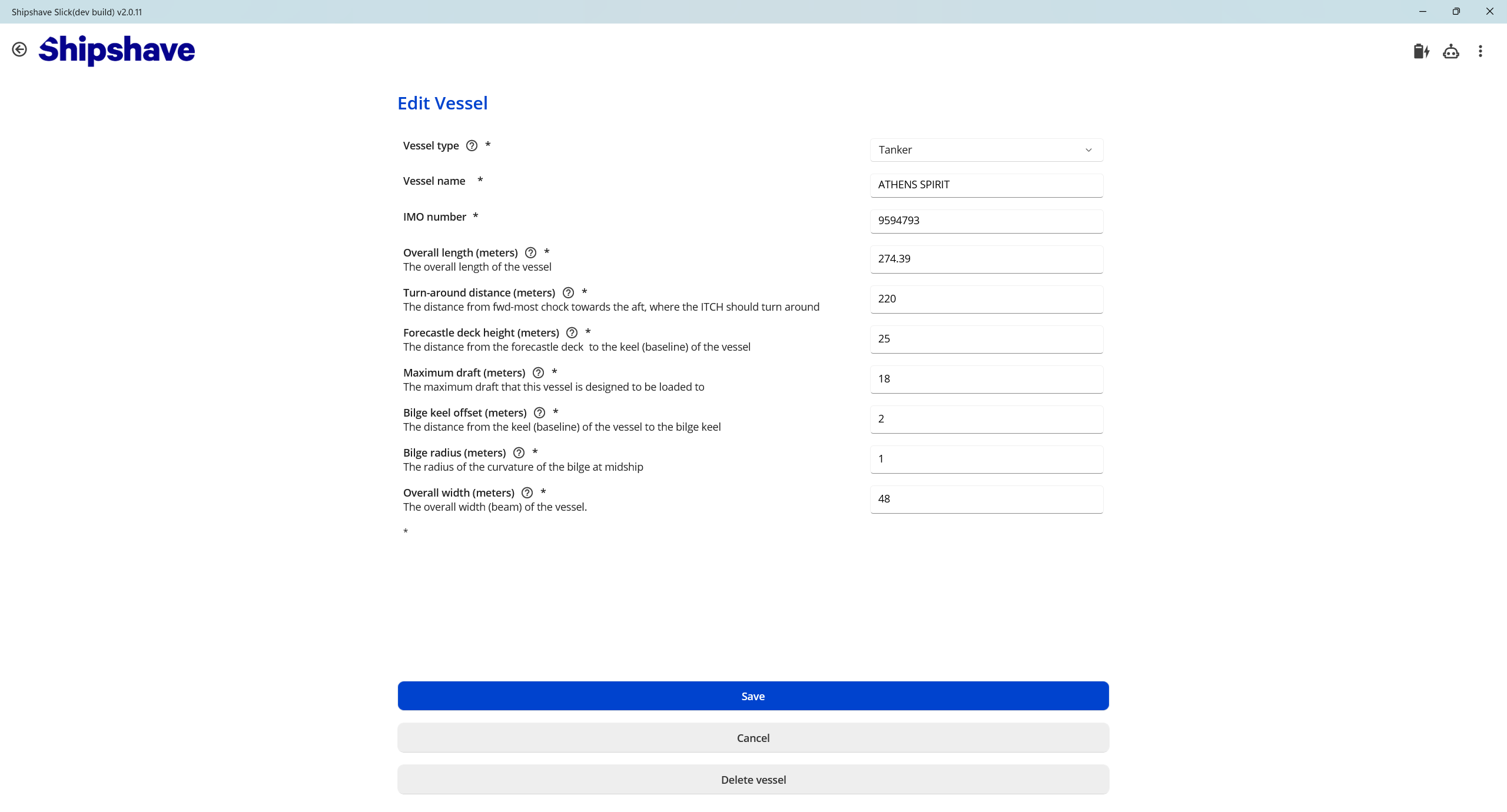
As an experimental feature, Developer mode allows users to delete a vessel and all its related data. To delete a vessel, go to "Edit vessel" from any of the available entrypoints.
At the bottom a new "Delete vessel" button is available.
Delete a cleaning
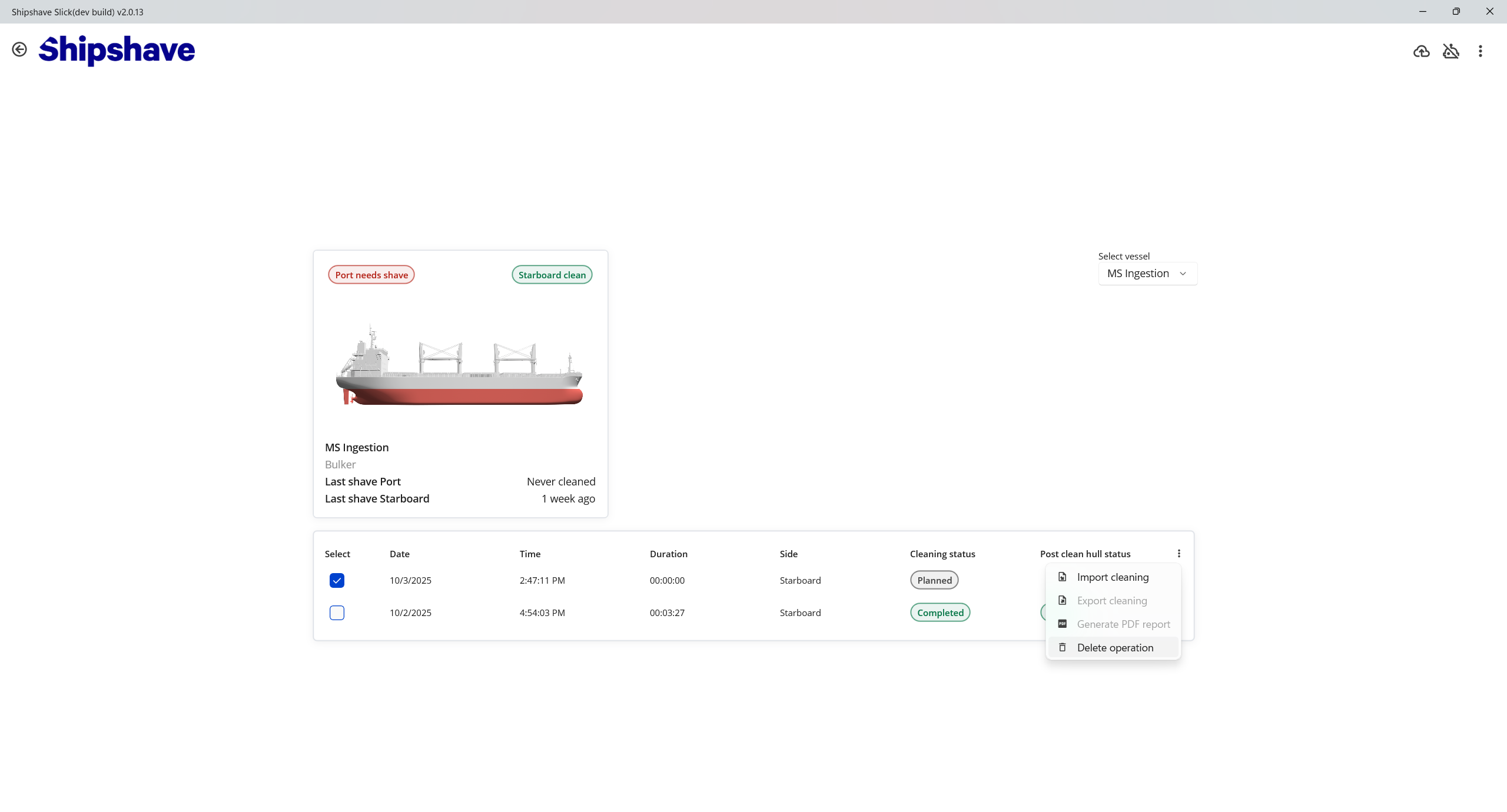
Developer mode also allows deleting a cleaning.
Navigate to the vessel operation page => select the cleaning(s) to delete => click the three dots in the table's top right corner => select "Delete operation".